Graphics Settings for Lucky Block Race
See blocks, players, and structures clearly -- then keep enough FPS to actually win the fight phase.
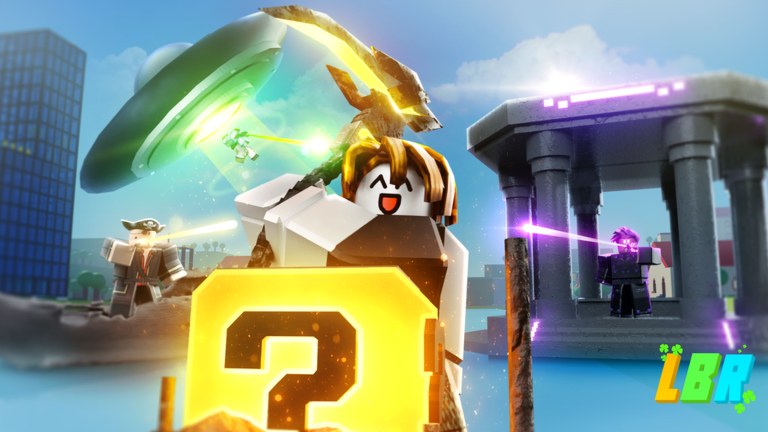
The official Lucky Block Race description gives one practical tip that many players skip: set graphics high in Roblox settings. In a game where you race a timer to open lucky blocks, then convert weapons, events, and structures into a win in 1v1, 2v2, or FFA, visual clarity is not cosmetic — it is decision speed. This guide explains why high fidelity helps, how to balance the Roblox graphics slider on weak PCs and mobile, and how camera plus UI habits pair with solid controls.
New to the loop? Start with Getting Started, then return here before your next serious session.
Why high graphics matters here
Lucky Block Race packs up to twelve players into a short open-then-fight round. You need to:
- Spot distant lucky blocks during the lucky block phase
- Separate interactable piles from background props
- Read player silhouettes before they third-party you
- Notice structures that reshape mid for the fight
- Catch hazard tells after a ruin outcome so you leave instead of greed-opening
Low settings smear edges, crush contrast, and hide small silhouettes. High settings make those reads faster. Faster reads mean more opens before the timer and cleaner transitions into the fight — the exact habits that raise win rate in how to win.
The Roblox graphics slider
Open Roblox Settings → Graphics Mode / Quality Level (wording varies by client):
- Prefer Manual quality so the client does not downscale mid-fight when the lobby gets busy.
- Push quality as high as your device holds a stable frame rate during a full twelve-player scramble.
- Test in a real match, not the empty lobby — particle spam and structures spike cost after opens.
- If FPS collapses only when many structures spawn, drop one or two levels rather than jumping to minimum.
There is no single magic number. A smooth mid-high setup beats a slideshow at maximum.
Readability priorities
Rank what you must see, then protect those layers first:
| Priority | What you need | Why |
|---|---|---|
| 1 | Lucky block silhouettes | Open-phase routing |
| 2 | Enemy outlines / motion | Avoid surprise swings |
| 3 | Structure edges and exits | Geometry for modes |
| 4 | Ground hazards / traps | Ruin recovery |
| 5 | Fancy particles | Lowest priority — cut first if needed |
If you must sacrifice beauty, keep silhouette clarity and cut decorative effects. The race rewards information, not screenshots.
FPS tradeoffs on weak PCs
Desktop players with older GPUs should:
- Cap or uncape FPS thoughtfully — a locked comfortable rate often feels better than spiky uncapped frames.
- Close browser overlays and Discord hardware acceleration if the client stutters only in dense mid fights.
- Avoid stacking heavy wallpaper engines or capture software during ranked-feeling sessions.
- Re-test after major Roblox client updates; defaults sometimes reset.
When FPS dips, your interact timing and camera tracking fail first. That is how you miss prompts during the open phase and eat free hits at timer end.
Mobile and thermal limits
On phones and tablets:
- Start one step below maximum, then raise if thermals stay calm for three full rounds.
- Play in a cool environment; throttling mid-FFA is a silent loss condition.
- Lower quality before lowering resolution if text and prompts become unreadable.
- Enlarge attack and jump hitboxes in tandem with clarity — see controls.
- Prefer Wi-Fi with stable ping; graphics clarity cannot fix rubber-banding into structures.
Voice Chat is not supported in this experience, so you are not trading battery for voice — spend the headroom on visuals and touch accuracy instead.
Camera and UI tips that pair with graphics
Clarity without camera discipline still loses rounds.
- Set sensitivity so a half-swipe finds the next block cluster without overshooting.
- Keep FOV comfortable enough to catch flankers in FFA without fisheye distortion that hides nearby prompts.
- After every ruin outcome, stop, exit the hazard, then re-sweep with a slow camera pass — panic spins miss blocks that high graphics already made visible.
- In 2v2, glance for your partner silhouette before committing a chase; high graphics only helps if you look.
- Hide unused UI clutter if your device allows — more pixels for the arena means faster reads.
These habits feed directly into cleaner lucky block phase routes and fewer tilted deaths covered in how to win.
Before-match checklist
Run this every session, not only on day one:
- Graphics Mode set to Manual at the highest stable level
- One warm-up round confirming FPS during a busy mid scramble
- Camera sensitivity re-checked after any OS or Roblox update
- Mobile buttons scaled; desktop keybinds confirmed (controls)
- Distractions closed (extra tabs, overlays, capture if not needed)
- Mental plan: open first, evaluate loot, fight for the mode (modes)
- Wiki shortcuts bookmarked: Guides Hub, Getting Started
Common graphics mistakes
| Mistake | Fix |
|---|---|
| Auto quality dipping mid-fight | Switch to Manual |
| Max settings at 20 FPS | Drop levels until fights feel trackable |
| Blaming RNG for missed blocks | Raise clarity; slow the camera sweep |
| Ignoring thermal throttle on mobile | Lower effects early, not after the first freeze |
| Perfect visuals, terrible sensitivity | Tune camera with controls |
| Skipping the warm-up round | Always test under real player density |
How graphics ties to gems and improvement
Wins pay gems for lucky block and pickaxe skins. Every missed block and every late transition is a small gem tax. High, stable visuals are one of the cheapest skill multipliers available — free, official, and recommended by the place itself. Pair them with routing from the lucky block phase guide and conversion habits from how to win, and your sessions compound instead of resetting every bad roll.
Related pages
See clearly, open cleanly, fight on purpose. That is the graphics advantage in Lucky Block Race.
Frequently Asked Questions
Quick answers about Lucky Block Race codes, modes, and gems.
Does Lucky Block Race really recommend high graphics?
Yes. The official place tip is to set graphics high so blocks and players are easier to read during opens and fights.
Should I always max the Roblox quality slider?
Only if FPS stays stable in a full lobby. Prefer the highest Manual level that remains smooth during structure-heavy mid fights.
What should I lower first on a weak PC or phone?
Cut decorative particles and secondary effects before silhouette clarity. Keep lucky blocks and players readable.
Why does my FPS drop only after the open phase?
Weapons, events, and structures add cost when many players finish opening. Test settings in real fights, not empty lobbies.
Do graphics settings replace good controls?
No. Pair clarity with tuned sensitivity and mobile button scaling. See the Controls guide for input habits.
Is there a before-match graphics checklist?
Set Manual quality, warm up one busy round, confirm camera and buttons, then commit to open-first play for your mode.